
How to Rename or Delete a Workspace
Owner-only maintenance from the workspace Settings page — and exactly what happens to keys and members on deletion

Written by Brian Hollis
July 6, 2026
Updated July 21, 2026
How to rename or delete a workspace
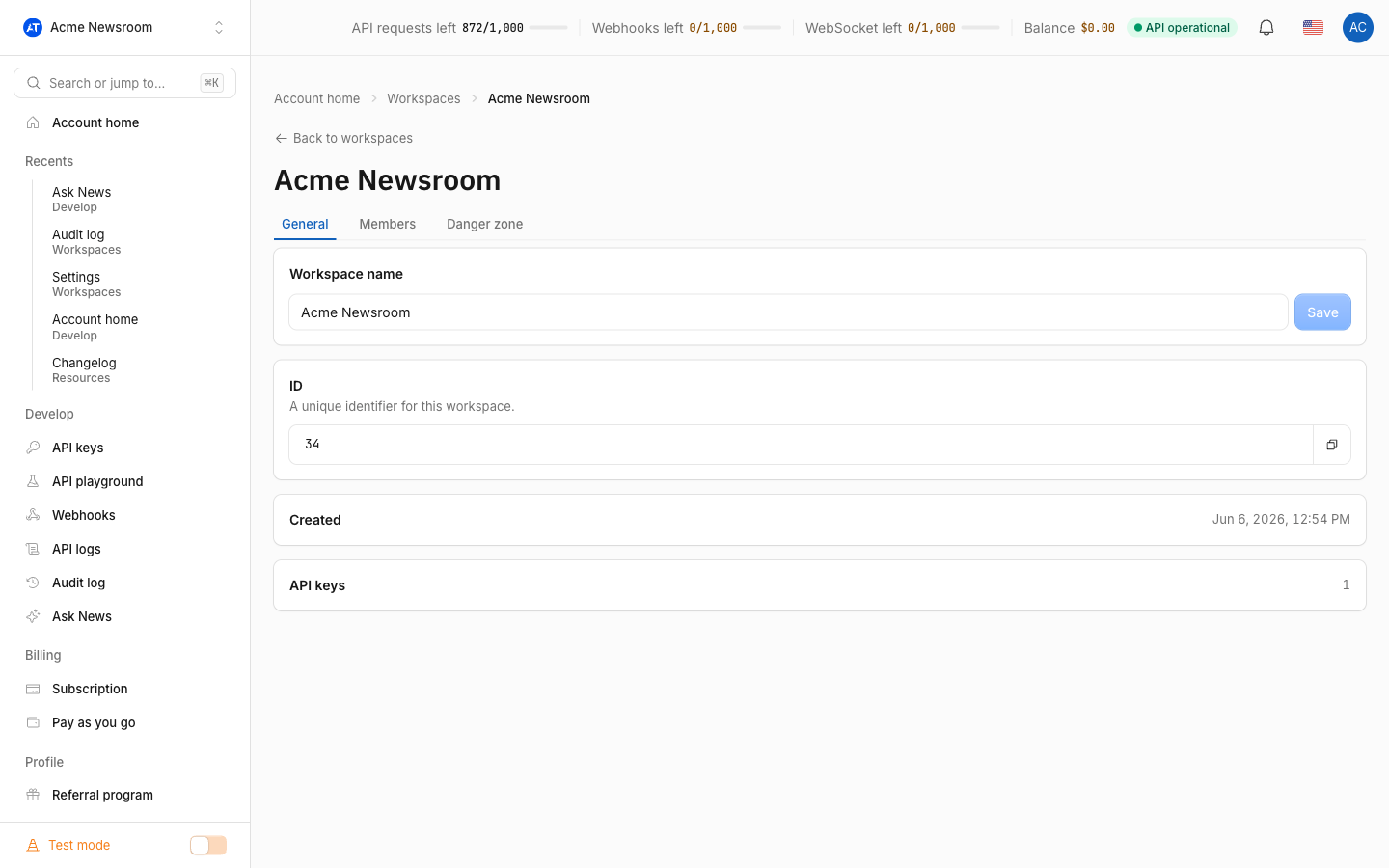
Both actions live on the workspace’s Settings page and both belong to the owner alone: open Workspaces in the dashboard, find the row of a workspace you own, and choose Settings from its ⋯ menu. Renaming is a simple field-and-save; deleting asks you to type the workspace name to confirm and then removes the workspace and its memberships — while the API keys survive by moving back to your personal workspace.
How to rename a workspace
On the Settings page, edit the name field and save (the dialog is titled Rename workspace). The change is cosmetic — nothing about keys, members, quota or billing is affected, and members simply see the new name in their workspace switcher. Renaming is recorded in the workspace audit log as a “Renamed workspace” event, so the team can see who changed it.
Admins cannot rename the workspace: even though admins manage keys and members, the workspace object itself — its name and its existence — is reserved for the owner. If you administer a workspace and need it renamed, ask the person who created it.
How to delete a workspace
In the danger section of the same Settings page, press Delete this workspace. The confirmation dialog requires you to type the workspace name exactly before the destructive button activates — a safeguard against deleting the wrong workspace from a list of similar names. The same checks run on the server, so the confirmation cannot be skipped.
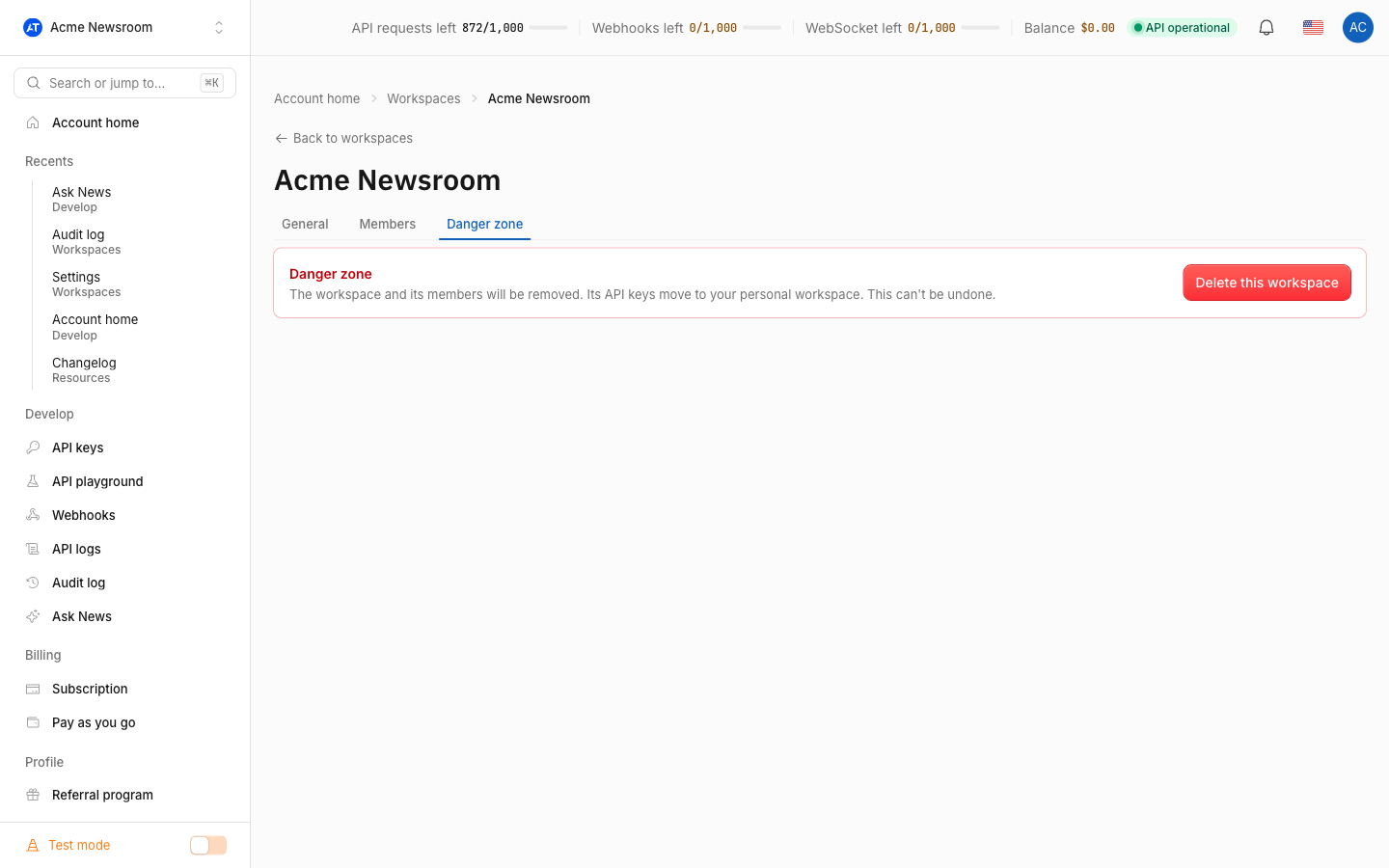
Deletion is immediate and cannot be undone. Three things happen at once:
- API keys move, they are not destroyed. Every key that belonged to the workspace is reassigned to your personal workspace and keeps working. If some of those keys should die with the workspace, revoke them afterwards on the API Keys page.
- Memberships are removed. Teammates lose access instantly; on their next visit the workspace is gone from their switcher and they fall back to their own personal workspace.
- The workspace itself disappears, freeing one slot of your workspace allowance (you can own up to 10 workspaces at a time).
If the deleted workspace happened to be your active one, the dashboard quietly switches you back to Personal, so you are never left without a working context.
Which workspaces cannot be deleted?
Your Personal workspace is permanent: it is created automatically on first sign-in and is the fallback that always holds your keys, so the Settings page will tell you it can’t be deleted rather than offer the button. Workspaces you are only a member of are also off-limits — you can leave them, but only their owner can delete them. And since ownership of a workspace can never be transferred to someone else, “the owner left the company” is a case for deleting the workspace and recreating it under a new account, not for handing it over.
Common Questions
- Do the moved API keys keep their limits and usage history?
- Can an admin delete a workspace?
- Is there any way to restore a deleted workspace?
Do the moved API keys keep their limits and usage history?
Yes. Deletion changes only which workspace a key belongs to — the key string, its name, scopes, restrictions and accumulated usage stay as they were, and integrations using the key keep working without interruption. The keys are simply listed under your personal workspace from then on.
Can an admin delete a workspace?
No. Admins manage day-to-day contents — API keys, webhooks, members — but renaming and deleting the workspace are owner-only, and the server rejects the attempt regardless of what the UI shows. The full permission matrix is in workspace roles.
Is there any way to restore a deleted workspace?
No. There is no trash bin or undo for workspaces — the type-to-confirm dialog is the last stop. What survives is deliberate: the API keys (moved to your personal workspace) keep serving traffic, so deleting a workspace never takes production integrations down by itself. If you deleted by mistake, recreate the workspace and re-invite the team; the keys can then be created fresh in the new workspace.