
How to review the workspace audit log
See who changed API keys, invited or removed teammates, and managed your APITube workspace — and filter the history by person, action or date

Written by Erick Horn
July 2, 2026
Updated July 21, 2026
How to review the workspace audit log
The Audit log in your APITube dashboard records the team actions taken in a workspace — who changed an API key, who invited or removed a teammate, who renamed or deleted the workspace — each stamped with the person, the exact action, the target, the time and the IP address. It is visible to the workspace owner and admins under the Audit log page in the dashboard. Members and viewers do not see it. Use it to answer “who did this, and when?” without guessing.
The audit log is scoped to the current workspace, so switch to the workspace you want to inspect first, then open its Audit log.
Who can view the workspace audit log?
Only the owner and admins of a workspace can open the Audit log. Members and viewers have no access: the /audit-log page returns “not found” for them and the underlying request is rejected, so the action history stays with the people who manage the team. This mirrors the rest of team management — inviting, re-roling and removing teammates is owner-and-admin work too, and the audit log is where those actions are recorded.
If you own several workspaces, each has its own separate audit log. Even a personal workspace has one, visible to you as its owner. For the full breakdown of what each role can do, see workspace roles: owner, admin, member and viewer.
What actions does the audit log record?
The audit log captures team and workspace changes, not read-only browsing. Recorded actions include:
- API keys — created, renamed, revoked, regenerated, and updates to a key’s permissions (scopes), IP restrictions and expiry date.
- Webhooks — created, updated, deleted, a delivery resent, and a test event sent.
- Members and invites — a member invited, an invite revoked, a teammate joining, a role changed, a member removed, and a member leaving.
- Workspace — the workspace created, renamed or deleted.
- Billing limit — the monthly spending limit updated (owner only).
- Data — request logs exported.
Each of these shows in the log with a plain-language label such as “Created API key”, “Changed member role” or “Removed member”, so you read the history without decoding internal codes. Managing keys is one of the most common things you will see here — see how to create, rename and revoke API keys.
What does each audit log entry show?
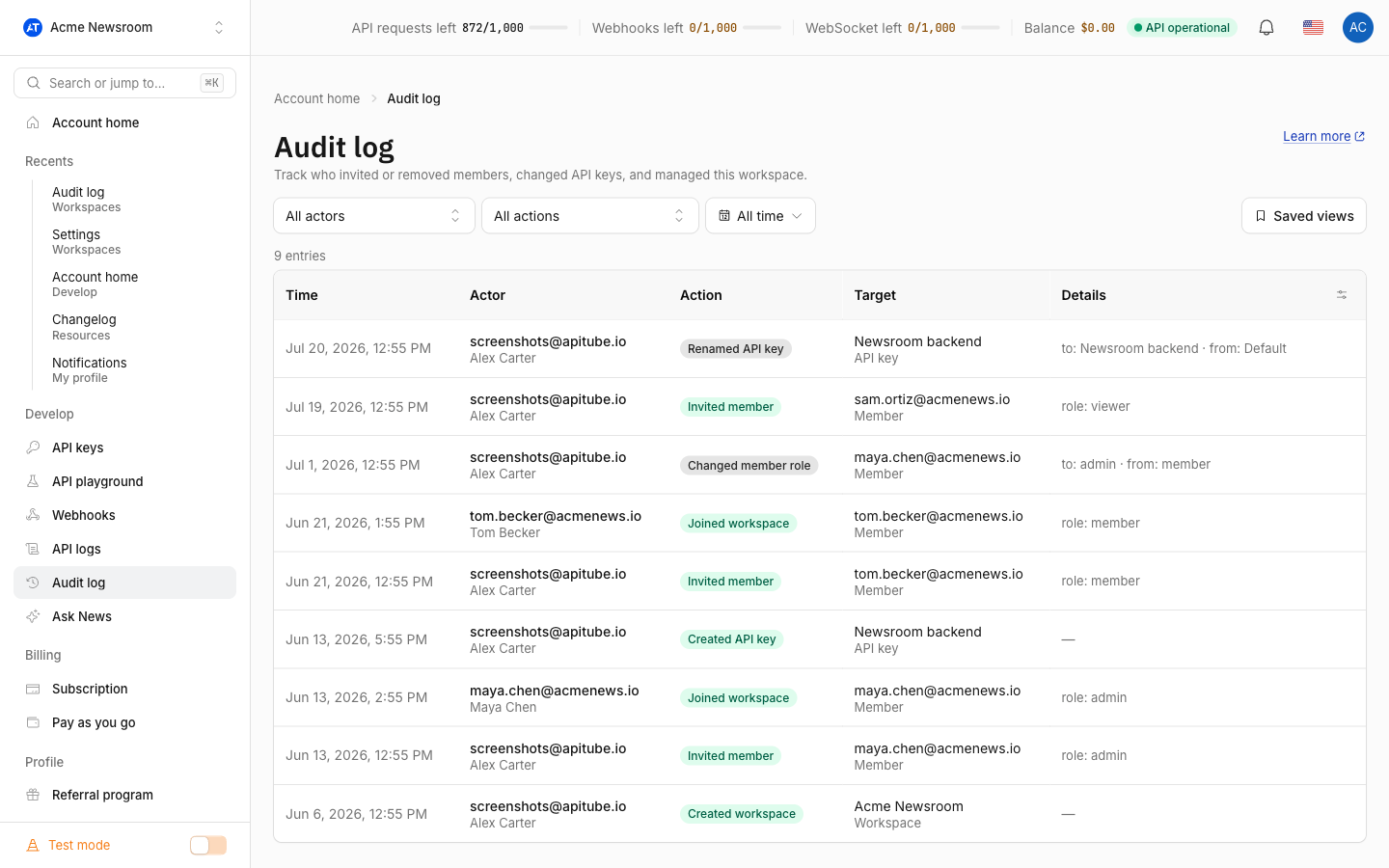
Every entry is one row with these columns:
- Time — when the action happened.
- Actor — the teammate who did it, shown by email (and name when available). The email is captured at the moment of the action, so the record stays accurate even if that person later changes their address or leaves the team.
- Action — the plain-language action label, for example “Revoked API key”.
- Target — what the action affected: an API key, a member, a webhook or the workspace itself.
- Details — opens a side panel with the IP address the action came from and any extra context for that change, such as the old and new value of a setting.
Because the actor and target are recorded on every row, you can trace a specific change back to a specific person and a specific object.
How to filter the audit log
The Audit log page has three filters so you can narrow a long history fast:
- Actor — pick a teammate to see only their actions (the “All actors” dropdown lists everyone who has ever acted in the workspace).
- Action — pick an action type, for example only “Revoked API key” or only member changes.
- Date range — bound the history to a start and end date.
Combine them to answer targeted questions — “what did this admin change last week?” — and page through the results, 50 entries at a time. The audit log is read-only: there is no way to edit or delete an entry, which is what makes it a trustworthy record.
What the audit log does not track
The audit log is a team record, so it deliberately leaves out personal account settings. Changing your own email, password, avatar, dashboard language or theme is not written to the workspace audit log, because those are your private profile actions, not workspace management.
It is also different from your API request logs. The audit log answers “who managed the team and the keys?”; the request logs answer “what API traffic went through my keys?” — status codes, latency, endpoints. For that live API usage history, see how to view and search your request logs.
Common Questions
- Can members or viewers see the audit log?
- Does the audit log record my email or password changes?
- Does the audit log show the IP address of each action?
- Is the audit log per workspace or account-wide?
Can members or viewers see the audit log?
No. The Audit log is limited to the workspace owner and admins. Members and viewers cannot open it — the page returns “not found” for them. If a teammate needs to review the workspace’s action history, promote them to admin; that grants audit-log access along with team and key management, without touching billing.
Does the audit log record my email or password changes?
No. Personal account settings — your email, password, avatar, language and theme — are not written to the workspace audit log. The log is intentionally a record of team and workspace actions (keys, members, webhooks, workspace changes and the spending limit), not private profile changes.
Does the audit log show the IP address of each action?
Yes. Open the Details panel on any entry to see the IP address the action came from, along with any extra context for that change. The actor’s email and the timestamp are on the row itself, and the IP is captured on a best-effort basis from the request.
Is the audit log per workspace or account-wide?
Per workspace. Each workspace keeps its own separate audit log scoped to that workspace’s actions, so switch to the workspace you want to inspect before opening its Audit log. If you own multiple workspaces, reviewing one does not show the actions of another.