
How to Create, Rename and Revoke API Keys
Create named keys, rotate secrets and cut off access — all from the API Keys page in your dashboard

Written by Erick Horn
June 27, 2026
Updated July 21, 2026
How to create, rename and revoke API keys
You manage every API key on the API Keys page of your APITube dashboard. Click Create key to add one, then use the row menu on any key to rename it, regenerate its secret, or revoke it. Each workspace can hold up to 20 active keys, counted separately for Test and Live mode.
An API key is the secret you send with every request to authenticate it. You can pass it as the X-API-Key request header or as an ?api_key= query parameter, as shown in the official authentication reference. The dashboard is where you create those keys and control their lifecycle.
Where do you manage API keys?
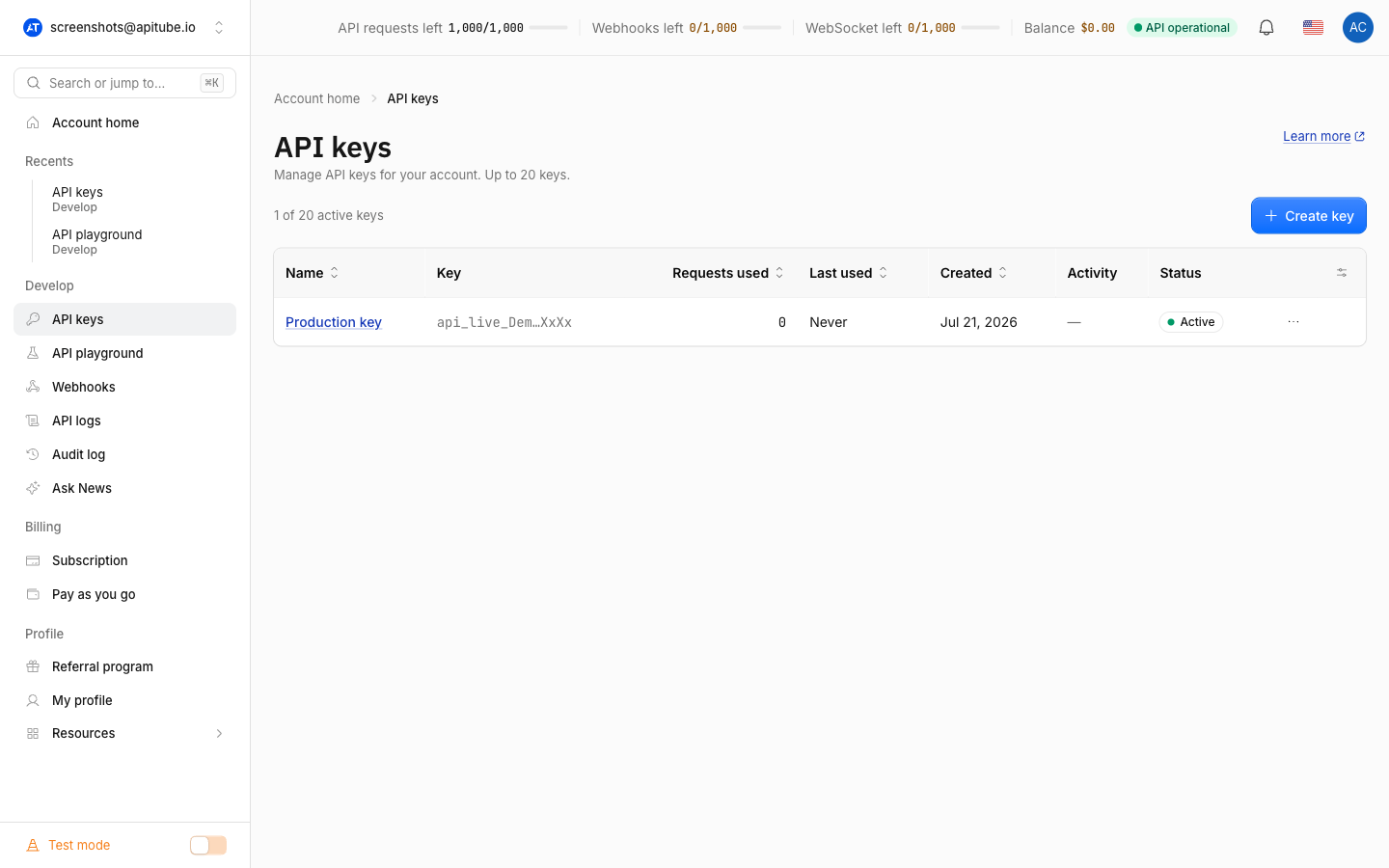
Open the API Keys page in the dashboard. It lists every key on the account in a table with columns for Name, Key, Usage points, Last used, Created, a 7-day Activity sparkline, and Status. Each row shows the key value truncated, with a copy icon that copies the full secret to your clipboard.
Your first key is labelled Default, and any key you create without a name shows as Unnamed key. The Status column flags each key as Active, Revoked, or Expired, and warns “Expires in Nd” when a key is within seven days of its expiry date. Test-mode keys carry a small Test badge so you can tell them apart at a glance.
How to create a new API key
- On the API Keys page, click Create key.
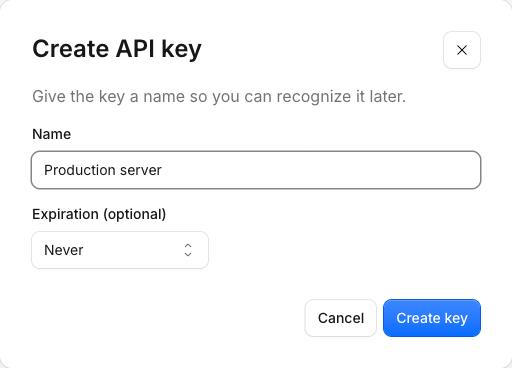
- Give the key a name — this field is required, so pick something you will recognize later, like “Production server”. The name can be up to 255 characters.
- Optionally expand the extra settings to add an expiration (Never, in 7 / 30 / 90 days, or a custom date), IP and referrer restrictions, or endpoint scopes that limit which endpoints the key can call.
- Click Create key to confirm.
The new key appears at the top of the table. Its value starts with api_live_ for a Live key or api_test_ for a Test key — the prefix is the only thing that marks a key’s mode — followed by a long random string. Click the copy icon next to the new key to grab the full secret and paste it into your app:
curl -H "X-API-Key: api_live_YOUR_KEY" \
  "https://api.apitube.io/v1/news/everything?per_page=10"
Keys are created in whichever mode (Test or Live) you currently have selected, and the table shows only the keys for that mode.
How to rename an API key
To rename a key, open the ⋯ menu at the end of its row and choose Rename. Type a new name and click Save. Renaming only changes the label you see in the dashboard — the secret, its usage history, and any restrictions stay exactly the same, so renaming never breaks a key that is already in use. Clear, specific names (“Staging worker”, “Mobile app”) make it far easier to audit and rotate keys later.
How to regenerate (rotate) a key
Use Regenerate from the row menu when a secret may have leaked. Regenerating issues a brand-new secret for the same key while keeping its name, usage history, restrictions, scopes, and expiry — only the secret string changes, and the key stays in the same mode. The old secret stops working immediately, so update every place that used it right away.
Because the previous secret is rejected the moment you regenerate, any client still sending it will start getting 401 responses until you swap in the new value. See how to fix authentication (401) errors if requests fail after a rotation.
How to revoke an API key
To permanently disable a key, open the row menu and choose Revoke, then confirm. As the confirmation says, the key stops working immediately and cannot be restored — there is no undo. A revoked key stays in the table marked with a Revoked status for your records, but it no longer authenticates requests and no longer counts toward your active-key limit, which frees a slot for a new key.
Revoke a key whenever it is no longer needed or you suspect it is compromised and you do not want to keep the same key slot. If you only want to swap the secret but keep the key, its name, and its history, use Regenerate instead of Revoke.
Common Questions
- How many API keys can I have?
- Can I see a key’s full value again after creating it?
- Do separate keys split my quota?
- Who on my team can manage API keys?
How many API keys can I have?
You can hold up to 20 active keys, and the limit is counted separately for Test and Live mode — so you get 20 Live keys and 20 Test keys. Revoked keys do not count toward the limit, so revoking an old key always frees room to create a new one. Trying to create one past the limit returns an error telling you the maximum has been reached.
Can I see a key’s full value again after creating it?
Yes. Unlike many APIs, APITube keeps the full key value available in the dashboard: the API Keys table shows each key with a copy icon that copies the complete secret at any time. There is no “you can only see it once” step. Still, treat the value as a password — store it in a secret manager and never embed a privileged key in client-side or browser code.
Do separate keys split my quota?
No. Your request quota, balance, and subscription are shared at the account level, not per key. Creating several keys does not give you more requests — every key draws from the same pool. Use multiple keys to separate environments (production, staging, a partner integration) and to rotate or revoke one without disturbing the others, not to increase your limits.
Who on my team can manage API keys?
In a shared workspace, the owner, admins, and members can all create, rename, regenerate, and revoke keys. Viewers have read-only access and cannot change keys. Role checks are enforced on the server, so an action a role cannot perform is blocked even outside the dashboard.