
How to Change a Member's Role or Remove Them
Re-role or revoke a teammate on the APITube Workspaces → Team page, and let members leave on their own

Written by Brian Hollis
July 2, 2026
Updated July 21, 2026
How to change a member’s role or remove them
In APITube, a workspace owner or admin manages existing teammates on the Team page — open Workspaces → Team (the page at /workspaces/members). To change what someone can do, pick a new role from the inline dropdown (Admin, Member or Viewer). To take away access, click Revoke. Members and viewers cannot manage the team, and the workspace owner can never be re-roled or removed — ownership is fixed to the account that created the workspace.
Who can change roles and remove members?
Only the owner and admin can re-role or remove teammates. When an admin or owner opens the dashboard, the sidebar shows a Workspaces → Team item; members and viewers do not see it, and the Team page returns “not found” if they open the URL directly. This follows the role model: inviting, changing roles and removing people are all admin-and-owner actions, while a member can only create and use keys and webhooks, and a viewer has read-only access. For the full capability breakdown, see what each workspace role can do.
How to change a member’s role
On the Team page, every active member shows a role dropdown next to their name. Change it inline:
- Open Workspaces → Team.
- Find the member and click the role dropdown in their row.
- Choose Admin, Member or Viewer. The change applies immediately.
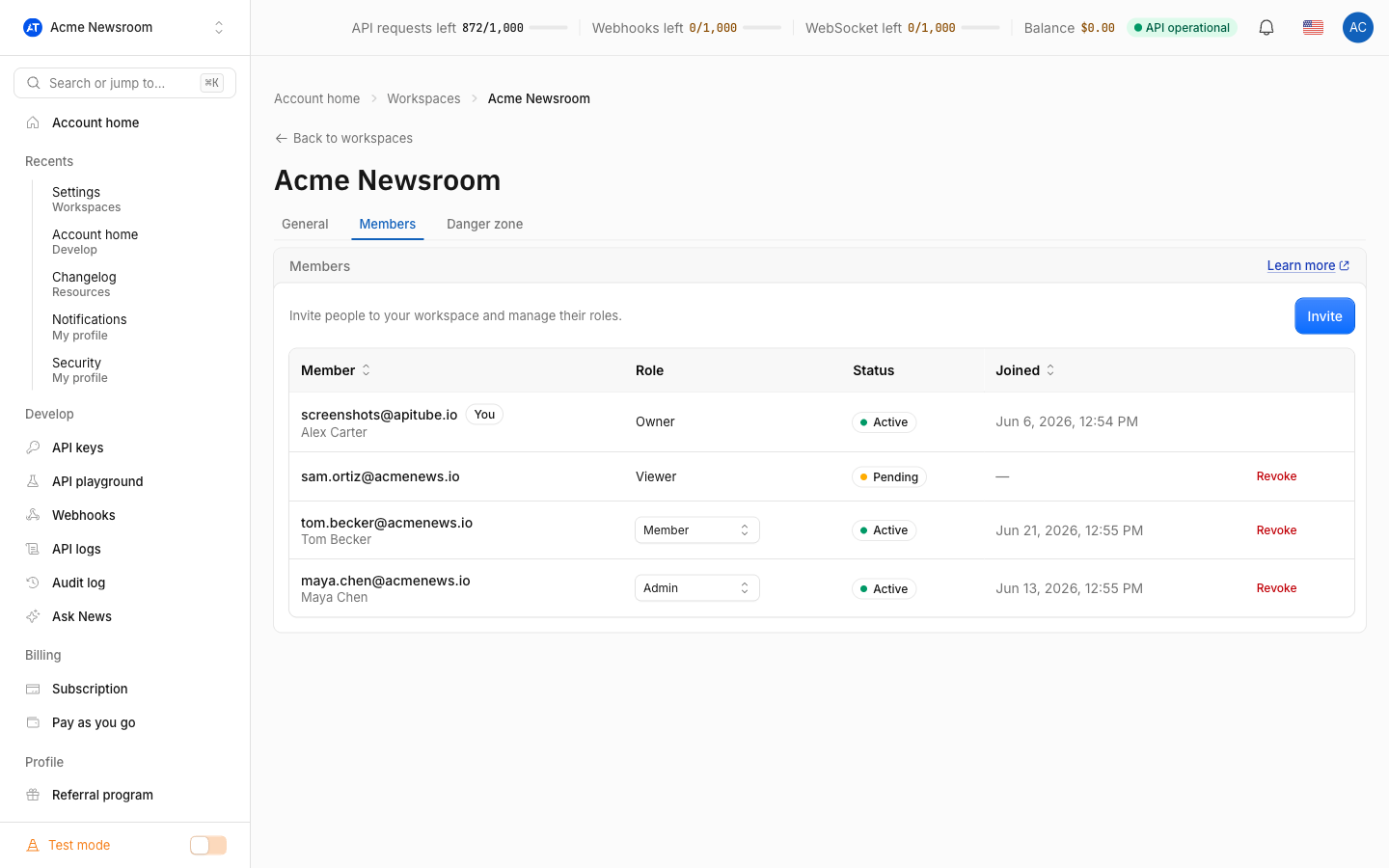
A few things to know about role changes:
- Owner is never an option. You can promote a teammate up to Admin, but you cannot hand out ownership — there is no “transfer ownership” action anywhere in the dashboard.
- Pending invites can’t be re-roled. A teammate who has not accepted their invite yet shows a plain Pending badge and no dropdown. To change the role you offered them, revoke the pending invite and send a new one with the role you want.
- Admin still can’t touch billing. Promoting someone to Admin gives them team and key management, but not billing, the plan, or the owner’s account settings.
How to remove a member from a workspace
To remove a teammate, click the Revoke button in their row on the Team page. APITube asks you to confirm, then cuts that person’s access to the workspace right away and drops them from the member list. The same Revoke button also cancels a Pending invite before it is accepted, so you can withdraw a link you shared by mistake.
Revoking a teammate is a “soft” removal: it ends their membership but keeps a record, which is why the person disappears from the list rather than being erased. If you need to bring them back later, you send a fresh invite — a revoked membership cannot be flipped back on in place. See how to invite team members for the invite flow.
What happens to a removed member’s access and API keys?
Removing a teammate ends their access to the workspace immediately: on their next visit the workspace disappears from their switcher and they fall back to their own personal workspace. Removing a person does not delete the API keys they created, however. Keys belong to the workspace, not to the individual, so any key a removed teammate made stays active and keeps spending the owner’s shared quota. If you want those keys gone, revoke them yourself on the API Keys page — see how to create, rename and revoke API keys.
How can a teammate remove themselves?
A member, admin or viewer can leave a workspace they were invited to without waiting for an admin. On the Workspaces page (/workspaces), open the ⋯ menu on the row for that workspace and choose Leave, then confirm. Leaving revokes your own membership and drops you back into your personal workspace. The one exception: the owner cannot leave their own workspace — a workspace you own is removed by deleting it, not by leaving.
Why can’t I remove or replace the workspace owner?
The owner is the account that created the workspace, and APITube treats ownership as fixed. The owner never appears in the member list, so there is no Revoke button or role dropdown for them, and no role change can demote them. There is also no way to transfer ownership to another account. This keeps billing unambiguous: quota, balance and the subscription are shared and belong to the owner, so the owner is always the single account responsible for the workspace. To let a teammate run day-to-day team management instead, make them an Admin.
Common Questions
- Can a member change roles or remove people?
- Does removing someone delete the keys they created?
- Can I get a removed teammate back?
- Where can I see who changed a role or removed a member?
Can a member change roles or remove people?
No. Changing roles and removing teammates are limited to the owner and admin. A member can create and use API keys and webhooks and view usage, but the Team page is hidden from them and returns “not found” if opened directly. If you want a teammate to manage the team as well, give them the Admin role.
Does removing someone delete the keys they created?
No. Revoking a teammate ends their access but leaves the workspace’s API keys untouched, because keys are owned by the workspace, not by the person who made them. Those keys stay active and keep drawing on the owner’s shared quota until you revoke each one on the API Keys page.
Can I get a removed teammate back?
Yes, by inviting them again. A revoked membership cannot be re-enabled in place, so you open Workspaces → Team, create a new invite for that person, and pick the role you want. Once they accept the new invite, they rejoin the workspace.
Where can I see who changed a role or removed a member?
Every role change and removal is recorded in the workspace audit log, which the owner and admins can review. It shows who made the change, what the change was, and when — useful for keeping track of team access over time. See how to review the workspace audit log.