
How to set a monthly spending limit
Cap pay-as-you-go overflow at a dollar ceiling so a traffic spike can't drain your balance

Written by Brian Hollis
August 22, 2026
Updated July 21, 2026
How to set a monthly spending limit
Set a monthly pay-as-you-go spending limit on the Pay As You Go page in your dashboard: enter a dollar amount (anything from $1 to $100,000) and save. Once your pay-as-you-go spend in the current calendar month reaches that ceiling, billed requests stop with 402 ER0177 instead of draining your balance — so a runaway loop or a traffic spike can never cost more than the number you chose.
Where do you set the pay-as-you-go spending limit?
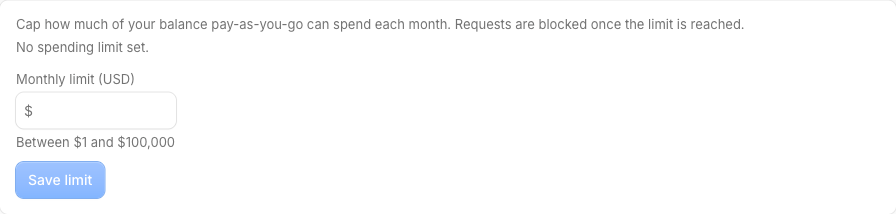
The limit lives on the Pay As You Go page of the dashboard, in the Monthly spending limit card. Type the cap in US dollars and press Save limit. The card shows where you stand for the month — for example, “$12.40 of $50.00 used this month (25%)” — so you can see how much headroom is left before billing stops.
Only the workspace owner can change this limit. A pay-as-you-go balance is shared across every workspace the owner runs, so the ceiling is set once on the owner’s account and applies everywhere that account’s keys are used — admins, members and viewers do not see the control.
The accepted range is $1 to $100,000. Anything outside that is rejected, and an empty or zero value means “no limit” — billing falls back to the default behaviour where overflow runs until your balance hits zero.
What happens when the spending limit is reached?
When your pay-as-you-go spend for the current month reaches the limit, the next request that would be billed to your balance is refused with HTTP 402 and the error code ER0177:
{
  "status": "not_ok",
  "errors": [
    {
      "status": 402,
      "code": "ER0177",
      "message": "Monthly pay-as-you-go spending limit reached."
    }
  ]
}
No balance is touched on that call — the request simply does no work and returns the error, so hitting the limit never costs you anything extra. The same ER0177 reaches real-time clients too: the SSE stream emits it as an event: error, and the WebSocket stream sends an error frame and closes with code 4006.
Note that ER0177 is different from ER0176 (“You have no points on your account”). ER0176 means your plan quota and your balance are both empty; ER0177 means you still have money in your balance but have chosen to stop spending it this month. See what happens when you run out of requests for the difference.
Does the spending limit affect my plan quota?
No. The limit only governs pay-as-you-go spend — the overflow billed at $0.01 per request once your monthly plan quota is used up. Your included plan quota is always spent first and is never blocked by this ceiling. The cap only comes into play after the quota is exhausted and a request would otherwise draw a cent from your balance. Read What is Pay As You Go? for how the quota-then-balance order works.
When does the spending counter reset?
The counter tracks spend per calendar month in UTC, and it resets lazily at the start of each new month. The first billed request after the 1st (UTC) starts a fresh period at zero, so spending automatically resumes on the new month with the same limit still in place. If you need to keep going before the reset, raise the limit (or remove it) in the dashboard and billing continues immediately.
How do you watch your spend and get warned early?
You get alerts before you hit the wall, and you can also read the remaining budget straight from the API:
- 80% warning — when you’ve used 80% of the monthly limit, the dashboard raises an “Approaching spending limit” notification (the bell) and sends an email.
- 100% block — at 100%, you get a “Spending limit reached” notification and email letting you know new requests are blocked until next month or you raise the limit.
x-budget-remainingheader — every API response includes this header (cents left before the limit) whenever a limit is set, so your client can see the wall approaching in real time.
You can turn email alerts on or off in dashboard notification settings.
Common Questions
How do I remove the spending limit?
On the Pay As You Go page, use the Remove limit action under the Monthly spending limit card. That clears the ceiling, and overflow billing returns to the default behaviour — pay-as-you-go runs until your balance is empty. You can set a new limit again at any time.
Why can’t I change the spending limit?
Only the workspace owner can set or change the pay-as-you-go limit, because the balance and billing are shared across all of the owner’s workspaces. If you’re an admin, member or viewer, the control is hidden and the owner needs to make the change.
Does the limit cap how much I can top up?
No. The spending limit only caps how much of your balance pay-as-you-go can spend in a calendar month. Your balance itself, and top-ups, are not limited by it — you can hold any balance and still set a low monthly spend ceiling. The minimum limit you can set is $1 and the maximum is $100,000.
What’s the difference between hitting the limit and running out of balance?
Hitting the monthly limit returns 402 ER0177 while you still have money in your balance — it’s a self-imposed stop that lifts next month or when you raise the limit. Running out of balance (and plan quota) returns 402 ER0176 instead, which means there are no funds left to spend at all. In both cases the blocked request does no work and isn’t charged.