
How to Manage Dashboard Notifications
Read, dismiss and act on the alerts in the notification bell — quota, billing and API-key warnings

Written by Brian Hollis
June 28, 2026
Updated July 21, 2026
How to manage dashboard notifications
The bell icon in the top bar of your APITube dashboard collects account alerts — quota, billing and API-key warnings — and shows a count badge when any are unread. Open it to read each alert, mark all as read, dismiss ones you have handled, or click an alert to jump straight to the page that resolves it. These notifications are computed automatically from your account state, so they appear and clear themselves as conditions change.
Where are notifications in the dashboard?
Notifications live behind the bell icon in the dashboard header. When you have unread alerts, a small badge shows the count (or 9+ above nine), coloured by the most serious item — red for critical, amber for a warning, brand colour for info.
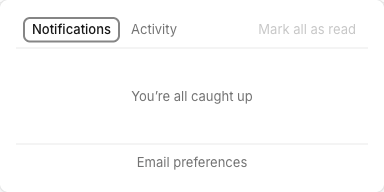
Click the bell to open a panel with two tabs:
- Notifications — the actionable alerts about your account (the focus of this article).
- Activity — a recent history of account events, such as a key being created or revoked, a payment, or a new subscription.
The panel refreshes on its own while it is open, so new alerts surface without a page reload.
What kinds of notifications will you see?
APITube generates notifications from three areas of your account. Each one links to the page where you fix it:
- Quota — warnings at 75% and 90% of your monthly requests, and a critical “Quota exhausted” alert at 100%. These point to your Subscription page.
- Billing — a low pay-as-you-go balance alert, spending-limit alerts at 80% and 100% of your monthly PAYG cap, a subscription cancelled notice (access continues until the end date), and a renewal coming up reminder.
- API keys — a “Create your first API key” prompt when you have none, plus key expired and key expiring soon alerts. The expiry alerts come from dates you set; see how to set an expiry date on an API key.
How do you read, dismiss and act on a notification?
Each alert in the panel shows a severity icon, a title, a short body, and how long ago it appeared. An unread item carries a small dot. You have three controls:
- Click the alert to mark it read and go to the relevant page — a quota alert opens Subscription, a key alert opens API Keys, a balance alert opens Pay As You Go.
- Dismiss it with the × that appears when you hover an item. Dismissing removes it from the bell for good, even if the underlying condition is still true.
- Mark all as read with the link at the top of the panel to clear the unread badge in one click (disabled when nothing is unread).
At the bottom of the panel, the Notification settings link opens your Account notification preferences, where email delivery for these alerts is managed.
Why do notifications appear and clear on their own?
APITube does not store a fixed list of messages — it recomputes your notifications from current account state every time the bell loads. Only three things are saved per alert: when it first appeared, whether you read it, and whether you dismissed it. The title and severity are derived fresh each time.
That means alerts resolve themselves: create a key and the “Create your first API key” prompt disappears; top up and the low-balance alert goes away; renew your plan and the quota warnings reset. You rarely need to clean them up by hand — dismissing is mainly for alerts you have acknowledged but cannot resolve yet. To see the requests driving a quota alert, open your request logs.
Common Questions
- What does the number on the bell mean?
- Do notifications use any of my quota?
- Will I also get these notifications by email?
- Are notifications the same for everyone on my team?
What does the number on the bell mean?
The badge is your count of unread notifications. It caps the display at 9+ when you have more than nine, and it takes its colour from your most serious unread alert — red for a critical item like an exhausted quota, amber for a warning, brand colour for an informational one. Reading or dismissing items lowers the count; Mark all as read clears it entirely.
Do notifications use any of my quota?
No. The bell reads data the dashboard already holds about your account; it does not call the News API. Opening the panel, reading alerts, dismissing them or marking them read never spends requests or credits from your plan.
Will I also get these notifications by email?
Some alerts — such as an expiring API key — can also be sent by email. Dismissing an alert in the bell also tells the system to stop emailing you about that same item, so the bell and your inbox stay in sync. Use the Notification settings link at the bottom of the panel (it opens Account → Notifications) to control which emails you receive.
Are notifications the same for everyone on my team?
Account-level alerts are about the workspace owner: quota, balance, subscription and pay-as-you-go limits are shared across all of the owner’s workspaces, and key-expiry alerts cover the owner’s keys. So members of a shared workspace see the owner’s account alerts rather than a personal set. To manage the keys those alerts refer to, see how to create, rename and revoke API keys.