
How to export your API logs
Download your request logs as CSV or JSON from the Logs page — what each format contains, the 100,000-row cap, and why the file is unmasked

Written by Brian Hollis
June 28, 2026
Updated July 21, 2026
How to export your API logs
Open the Logs page in your APITube dashboard, click the Export button in the toolbar, and choose CSV or JSON. The file downloads immediately and contains exactly the rows the table is currently showing — the export reuses your active filters, so a date window, a single key, or an errors-only view all carry through. Exporting reads stored data, so it never calls the News API and never spends a request or credit.
Use the export when you need your request history outside the dashboard: a spreadsheet for a quick pivot, a JSON file for a script or data pipeline, or a saved record for an audit. This article covers what each format includes, how much you can pull at once, and one safety detail — the exported file is not masked.
How do you export your logs?
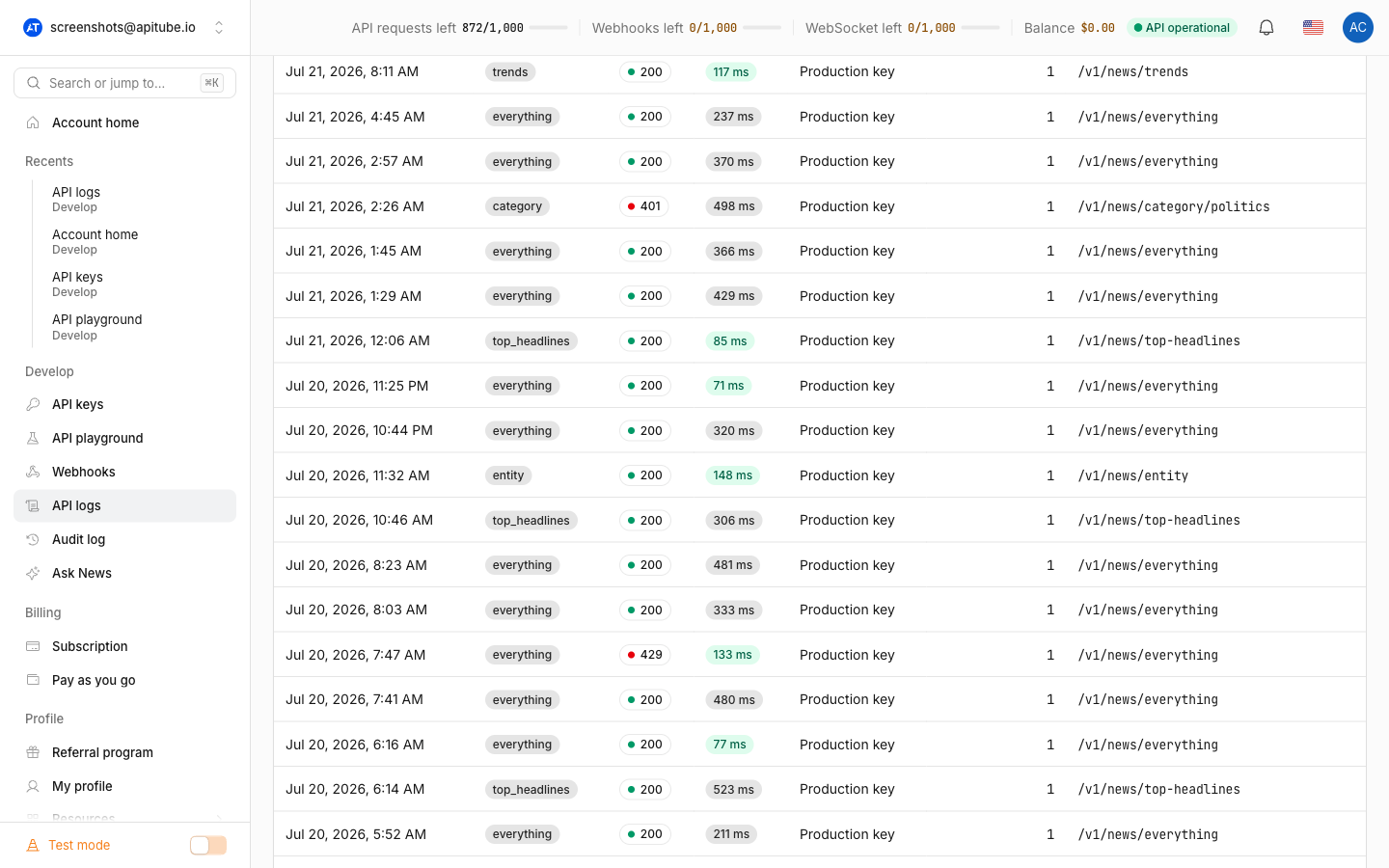
Go to Logs, set up the view you want, then export it:
- Apply your filters — date range, request type, status (All / Success / Errors), API key, and the search box all narrow the table.
- Click Export in the toolbar (the button with the download icon).
- Pick CSV or JSON from the dropdown. The browser downloads a file named
api-logs-<date>.csvorapi-logs-<date>.json, where the date comes from the end of your selected range.
Because the export sends your current filters to the server, whatever you see is what you get. There is no separate “export everything” toggle — to export your full history, clear the filters and widen the date range first, then export. For the filtering itself, see how to view and search your request logs.
What’s the difference between the CSV and JSON export?
CSV and JSON carry different amounts of detail, so pick by what you’ll do with the file:
- CSV is a flat, six-column table built for spreadsheets:
created_at,request_type,api_key_id,cost,uri, andparams. Theparamscolumn holds the request parameters as a JSON string inside the cell, and any value containing a comma, quote, or newline is properly quoted and escaped so the file opens cleanly in Excel, Google Sheets, or pandas. - JSON is the full record. Each entry is the complete log object, pretty-printed, and includes everything CSV has plus
status(the HTTP code),latency_ms,ip,country, andresult_count(how many articles the call returned). Choose JSON when you want the status, latency, or geo fields for analysis or a pipeline.
So CSV is the compact spreadsheet view and JSON is the lossless one. If you need error rates, response times, or result counts per request, export JSON.
Does the export include all my logs or just the filtered view?
The export includes the filtered view, capped at 100,000 rows. If your filtered result is larger than that, the file contains the newest 100,000 entries and the response carries an X-Truncated: 100000 header to signal that it was cut. To pull more, split the job into smaller date ranges and export each separately.
The export is also scoped the same way the rest of the Logs page is: it only includes requests made with API keys in your current workspace, and it follows the dashboard’s Test / Live mode toggle — in Live mode you export Live-key traffic, in Test mode you export Test-key traffic. Switch workspace or mode before exporting if you need a different set. Cost and volume in the file match what you can confirm under track your usage and quota.
Is my API key safe in the exported file?
Treat the exported file as a secret. On screen the dashboard masks your API key everywhere — in the request URL and in the parameters — but the export is the raw stored record and is not masked. If a request was authenticated by putting the key in the URL or query parameters (api_key=...) rather than the X-API-Key header, that key appears in full inside the exported uri (and in params) column or field.
Because of this, do not share an exported log file the way you might share a screenshot of the Logs page. If a file does contain a live key, rotate that key. Sending requests with the key in a header instead of the query string keeps it out of the logged URL in the first place.
Who can export logs, and does it cost anything?
Anyone in the workspace can export — owners, admins, members, and viewers all have access, because exporting only reads data the dashboard already stored. It does not call the News API, so it spends no requests or credits from your quota and never counts against your rate limit.
Exporting is recorded in the workspace audit log as a logs.export action, with the chosen format, the row count, whether the result was truncated, and the date range — so an owner or admin can see who pulled the data out and when.
Common Questions
- What columns are in the CSV export?
- Why does my export look incomplete?
- Does exporting logs use any of my quota?
- Is my API key hidden in the file?
What columns are in the CSV export?
The CSV has six columns in this order: created_at, request_type, api_key_id, cost, uri, and params. The params column is the request parameters serialized as JSON in a single cell. For richer fields — status, latency_ms, ip, country, result_count — export JSON instead, which returns the complete record for every request.
Why does my export look incomplete?
Two reasons. First, the export only includes your current filters and scope — the active date range, type, status, key, search term, current workspace, and Test/Live mode. Widen the date range or clear the filters to get more. Second, a single export is capped at 100,000 rows; above that you get the newest 100,000 and an X-Truncated header, so very large histories must be exported in smaller date slices.
Does exporting logs use any of my quota?
No. The export reads logs the dashboard has already saved and does not make a News API call, so it costs zero requests and zero credits and is not affected by rate limits. You can export as often as you need.
Is my API key hidden in the file?
No — unlike the on-screen view, the exported CSV or JSON is unmasked. If any request carried the key in its URL or parameters, the key appears in plain text in the file. Keep exported log files private, and rotate any key that ends up exposed in one.