
How to test requests in the API Playground
Build a News API request in the dashboard, run it with your own key, and read the live response

Written by Jacob Partington
July 3, 2026
Updated July 21, 2026
How to test requests in the API Playground
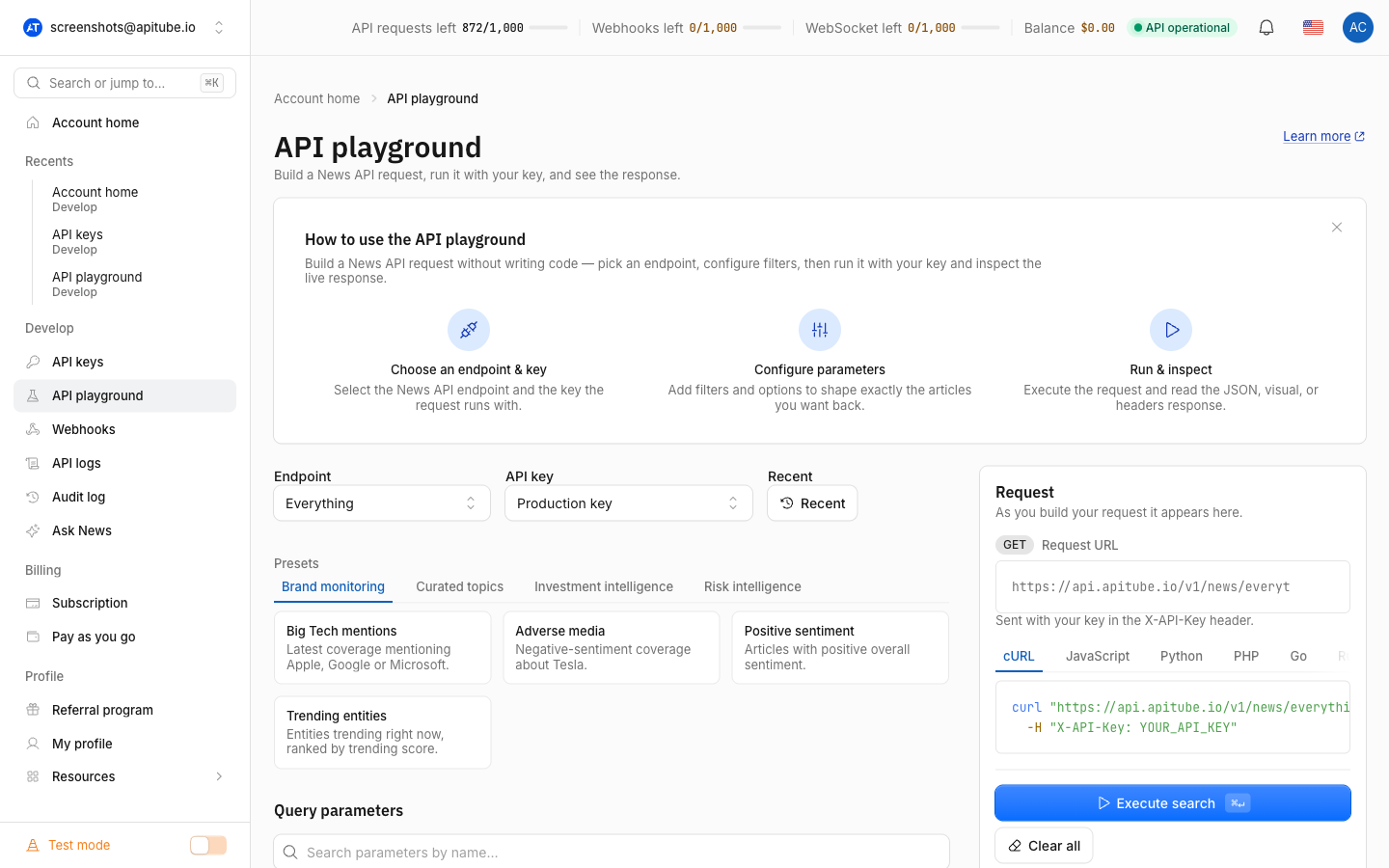
The API Playground is a page in the APITube dashboard, at /playground, where you build a News API request from dropdowns and fields, run it with one of your own API keys, and read the real JSON response — no code required. It sends a genuine call to the live News API, so the results, the quota it draws down, and the rate limits it hits are exactly what your own integration will get.
Open it from the API Playground item in the dashboard sidebar. The page has three things to set before you run: the Endpoint, the API key, and the Query parameters.
How do you run your first request in the Playground?
Four steps get you a live response:
- Pick an endpoint. It defaults to Everything (
/v1/news/everything), the general search endpoint. - Pick an API key. The selector lists the keys in your workspace for the current Test/Live mode. If you have none yet, the Playground shows No API keys yet and a Create a key link — see where to find and create your API key.
- Set query parameters. For example, set Language to
enand Per page to10. - Click Execute search (or press ⌘/Ctrl + Enter). The response appears on the right.
That request is the equivalent of GET https://api.apitube.io/v1/news/everything?language.code=en&per_page=10, but you never type the URL — the Playground assembles it from the fields.
Which endpoints and filters can you try?
The endpoint dropdown covers the main read endpoints: Everything, Top headlines, Raw, Local, Count, Trends, Article, Story, Category, Topic, Industry, Entity, and Fact Check. Endpoints that need a path value (Story, Category, Topic, Industry, Entity) show an extra field for it.
The essential parameters are always visible as their own fields: Title, Language, Category, Country, Source domain, Published date, Sentiment, Sort by, Order, Per page and Page. Everything else lives in the Advanced filters accordion, grouped by area — Sources, Entities & people, Media, Content & quality, Readability, Sentiment, Faceting, Highlighting and Trends. Every filter carries a small mono tag showing its exact API parameter name (for example source.bias, is_breaking, media.images.count.min), so what you build in the form maps one-to-one onto a request you can send yourself.
If you want a starting point, the Presets are ready-made scenarios grouped into Brand Monitoring, Curated Topics, Investment Intelligence and Risk Intelligence — pick one to fill the form, then tweak.
Does the Playground use my quota?
Yes, when you run with a live key. The Playground runs the request with the key you selected, so it counts against your account quota and draws down the same request pool your production traffic uses. A test key (prefix api_test_) never spends quota — it returns the real response shape with article content truncated, which makes it ideal for exploring the Playground for free. See test keys vs live keys for the full difference.
Because the call is real, the News API enforces everything it would enforce on your own request: quota, endpoint scopes, and rate limits all apply. If a request comes back with an error instead of articles — for example 402 when you are out of requests, 403 (ER0603) when the key lacks that endpoint’s scope, or 429 when you exceed the rate limit — the Playground shows that error response as the result rather than hiding it.
How do you turn a Playground request into code?
Below the form, the Source code example panel renders the exact request as a copyable snippet in cURL, JavaScript, Python, PHP, Go, Ruby and Java. Switch tabs to get the language you use. Each snippet sends your key in the X-API-Key header and shows a YOUR_API_KEY placeholder — the key is deliberately kept out of the URL so it can’t leak into server logs or referrers. The panel also shows the plain Request URL, so you can paste the whole thing into another tool if you prefer.
How do you read the response?
The response area has three tabs. JSON shows the raw body with Copy and Download buttons for the full payload (the on-screen view is capped to a few KB so a large response can’t freeze the page — Copy and Download always give you everything). Visual renders the articles as cards with Previous/Next paging. Headers shows the response headers the API returned. Above the tabs you get the HTTP status and the round-trip latency, so you can see both what came back and how fast.
Common Questions
- Can I replay a request from my API logs?
- Can I share a Playground request with a teammate?
- Do test keys work in the Playground?
- Why did my request return an error instead of articles?
Can I replay a request from my API logs?
Yes. In your request logs, open a log entry and click Open in Playground. That rebuilds the exact endpoint and parameters of the logged call in the Playground, so you can inspect what was sent and re-run or adjust it. The button only appears for endpoints the Playground supports.
Can I share a Playground request with a teammate?
Yes. The full state of the form — endpoint, key selection and every parameter — is encoded in the page URL, and the Share request button copies that URL to your clipboard. Anyone on your team who opens it lands on the same pre-filled request (they still choose their own key to run it).
Do test keys work in the Playground?
Yes. A test key runs in the Playground exactly like a live key and returns the same response structure, but the article content is truncated and no quota is spent. Use a test key while you are learning the parameters, then switch to a live key for full content. The key selector follows the dashboard’s Test/Live mode, so it only lists keys for the mode you are currently in.
Why did my request return an error instead of articles?
The Playground shows the real API response, including errors. A 402 means the account is out of requests, a 403 with ER0603 means the selected key is not scoped to that endpoint, and a 429 means you hit the rate limit. A 4xx with a validation code usually means a filter value is malformed. Read the status and body in the JSON tab, fix the offending field, and run again.