
How to manage email notification preferences
Choose which APITube emails reach your inbox from Account → Notifications — and how the switches affect account alerts

Written by Brian Hollis
July 3, 2026
Updated July 6, 2026
How to manage email notification preferences
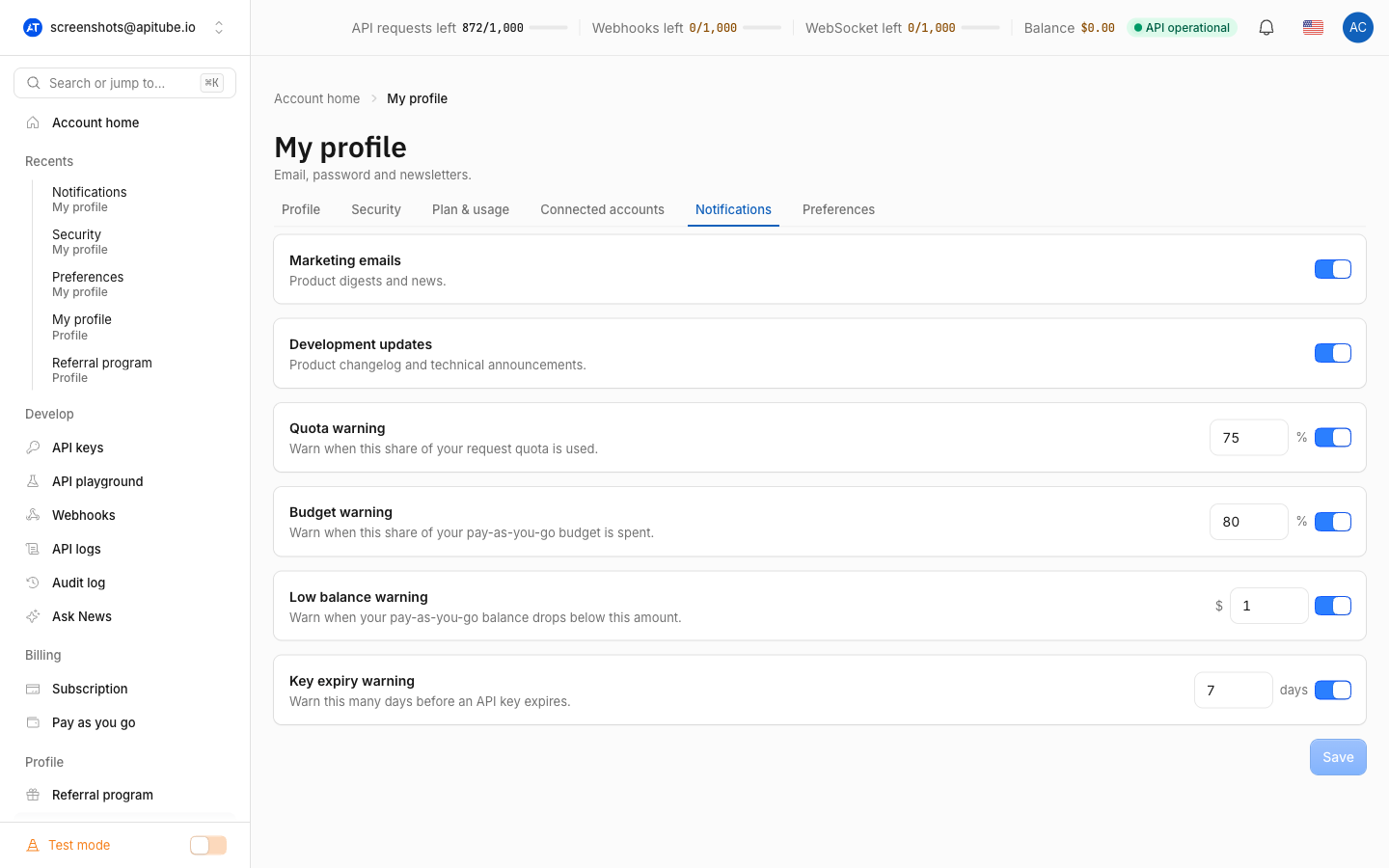
To manage which APITube emails reach your inbox, open Account → Notifications in your dashboard. That tab has two switches — Marketing Emails and Development updates — and both are on by default. Flip either one and the choice saves right away, with a small “Saved” confirmation; there is no separate save button.
Your email preferences are personal to the account you are signed in with, so changing them affects only your own inbox.
Where do you manage email preferences?
Email preferences live in the Account page, under the Notifications tab. You can open it directly at /account?tab=notifications, or click the Notification settings link at the bottom of the notification bell panel.
The tab shows two switches:
- Marketing Emails — Product digests and news.
- Development updates — Product changelog and technical announcements.
Each switch saves independently the moment you toggle it, so you can turn one off and leave the other on. There is no form to submit — the change is written straight away.
What does each email switch control?
APITube groups its emails into two categories, and each switch controls one:
- Marketing Emails covers product digests and general news — the promotional side of your inbox.
- Development updates covers the product changelog and technical announcements.
Both start on: if you have never touched these switches, you are treated as subscribed. Turning a switch off records you as unsubscribed for that category; turning it back on re-subscribes you. Because the default is “on,” you only ever need to visit this tab to opt out of a category (or opt back in later).
Do these switches affect account alerts?
Yes — the Development updates switch also gates your operational account emails. The alerts APITube sends by email are:
- Quota warnings at 75%, 90% and 100% of your monthly requests.
- API key expiring soon and API key expired notices.
- Pay-as-you-go spending-limit notices at 80% and 100% of your monthly cap.
All of these are delivered under the Development updates category, so switching it off silences these operational emails too. The Marketing Emails switch does not touch them. If you want product news off but account warnings on, leave Development updates enabled.
Turning off email does not hide these alerts inside the app: the notification bell still surfaces quota, billing and key-expiry warnings from your live account state. See how to manage dashboard notifications for the in-app side. One related behaviour: dismissing an alert in the bell also stops the matching email, so the two stay in sync.
How do you unsubscribe from an email you already received?
Every APITube notification email carries an unsubscribe link in its footer. Opening it takes you to a public page — you do not need to be logged in — with a button that unsubscribes you. That footer link is a broad opt-out: it removes you from all email categories at once, not just the one that sent the message.
For finer control, use the two switches in Account → Notifications instead, where you can keep one category and drop the other rather than turning everything off.
Common Questions
- Are APITube emails on or off by default?
- Will turning off email stop my expiring-key and quota warnings?
- Do email preferences change for my whole team?
- Can I re-subscribe after unsubscribing?
Are APITube emails on or off by default?
On. Both Marketing Emails and Development updates are enabled unless you turn them off — if you have never opened the Notifications tab, you are counted as subscribed to both. This means the tab is where you go to reduce email, and any category you have not explicitly switched off is still active.
Will turning off email stop my expiring-key and quota warnings?
By email, yes — those operational notices ride the Development updates category, so switching it off stops the emails. In the dashboard, no: the notification bell recomputes those warnings from your current account state every time it loads, so an expiring key or an exhausted quota still shows up there regardless of your email settings. If key-expiry warnings matter to you, it also helps to know how to set an expiry date on an API key so the alert timing is under your control.
Do email preferences change for my whole team?
No. These switches apply to the account you are signed in with, not to a shared workspace. Each person manages their own inbox in their own Account → Notifications tab.
Can I re-subscribe after unsubscribing?
Yes. Open Account → Notifications and switch the category back on — re-subscribing is immediate, the same as turning it off. This works even if you previously used the “unsubscribe from all” link in an email footer: flip the switches you want back on and those emails resume.