
How to change the dashboard theme
Switch the APITube dashboard between Light, Dark, System and the 80s theme — and where the choice is saved

Written by Brian Hollis
July 3, 2026
Updated July 6, 2026
How to change the dashboard theme
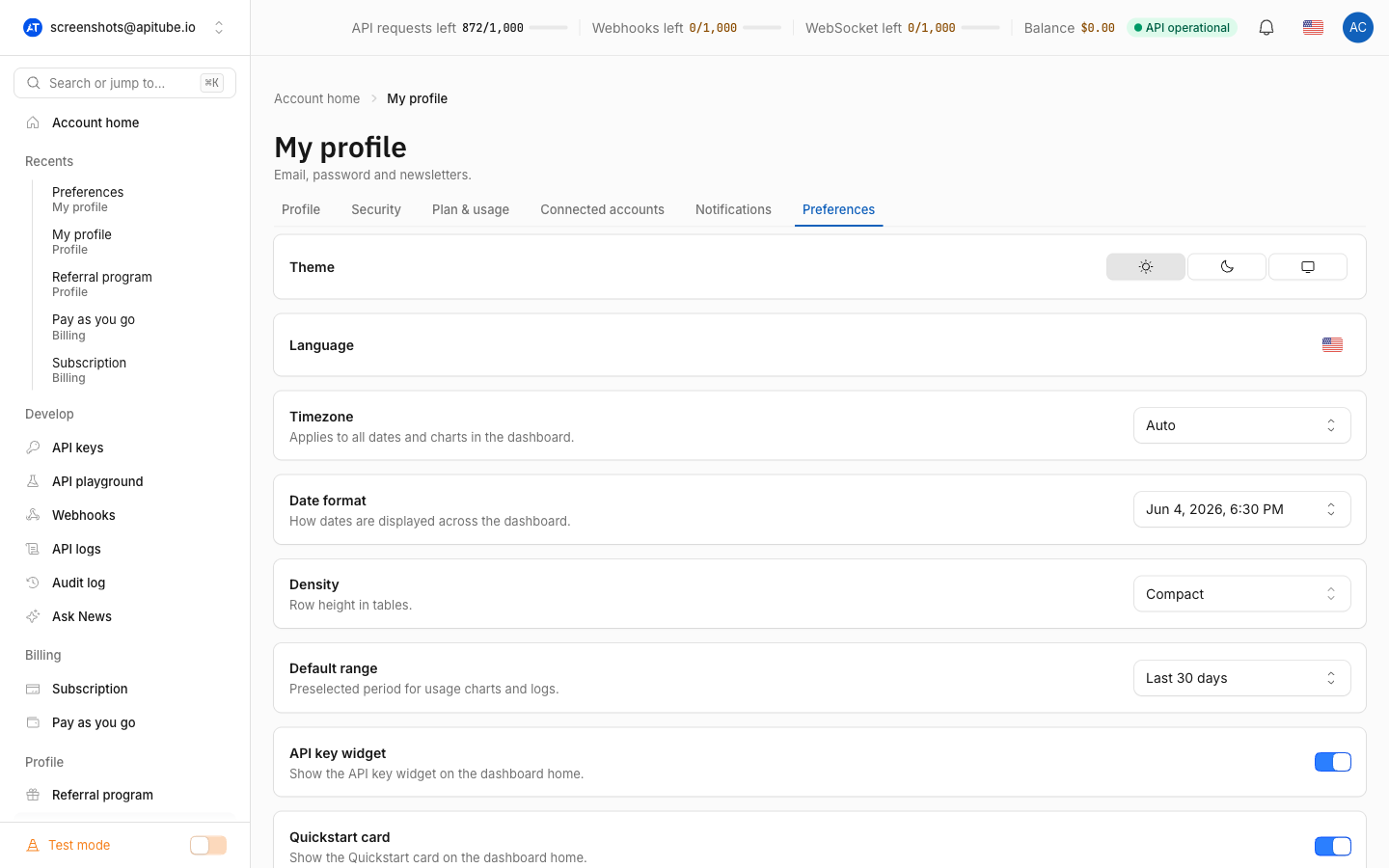
To change the APITube dashboard theme, open the avatar menu in the top-right corner and use the theme switch at the bottom, or go to Account → Preferences and use the Theme control. Pick one of Light, Dark, System, or 80s. The change applies instantly — there is no save button and no page reload — and your choice is remembered in this browser.
The theme is saved in your browser, not on your account. It does not sync across devices or browsers, and it does not change anything about the API, your data, or your other dashboard settings.
Where do I change the dashboard theme?
The theme switch lives in two places, and both do exactly the same thing:
- Avatar menu (fastest). Click your avatar in the top-right corner of the dashboard. The theme switch is the last item at the bottom of the dropdown — a small row of icons for Light, Dark, System and 80s. Clicking one applies it immediately without closing the menu, so you can preview each option.
- Account → Preferences. Open your Account page and select the Preferences tab (the Account page is organized into tabs such as Profile, Security, Notifications and Preferences). The Theme row at the top holds the same switch. You can jump straight there with the
?tab=preferenceslink on the Account page.
What themes can I choose?
The dashboard ships with four options:
- Light — a bright, high-contrast console look, best in well-lit rooms.
- Dark — a dark background that’s easier on the eyes at night.
- System — follows your operating system. If your OS is set to dark mode, the dashboard is dark; when the OS switches to light, so does the dashboard. This is the default for a new account, so if you never touched the setting, the dashboard already matches your computer.
- 80s — a retro synthwave theme: Orbitron display headings with a neon-cyan glow and subtle CRT scanlines over the page. It’s a purely visual skin — every button, table and chart works exactly as in Light or Dark.
Does my theme sync across devices and browsers?
No. The theme is stored locally in the browser you set it in, so it does not follow you to another computer, another browser, or a private/incognito window. This is different from your other dashboard preferences — the timezone, date format and density you pick on the same Preferences tab are saved to your account and do travel with you. Only the theme is browser-local. If you want the same look everywhere, set it once in each browser you use.
Common Questions
Why did my theme reset to System on another computer?
Because the theme lives in the local browser, not your account. A different device, a different browser, or clearing your browser’s site data all start fresh — and a fresh start falls back to the System default, which follows that machine’s light/dark setting. Set the theme again in that browser and it will stick there.
Does changing the theme affect the API or my results?
No. The theme only restyles the dashboard interface. It has no effect on API requests, response data, your API keys, quota, or billing. Switching to the 80s theme (or any other) is safe to do at any time and changes nothing about how the News API behaves.
The theme control disappeared after I signed out — is that normal?
Yes. The switch is part of the signed-in dashboard, so it’s only available while you’re logged in. Note that changing the theme is not the same as ending a session — if you want to end every active login, that’s a separate action: see how to sign out of all devices. To fine-tune what the dashboard shows you, you can also manage dashboard notifications from the same Account area.