
How to Export a Dataset of Articles from the Dashboard
Bulk-export up to 1,000,000 articles to JSONL, CSV or Parquet for a flat 1,000 requests — without writing a single API call

Written by Erick Horn
September 3, 2026
How to export a dataset of articles from the dashboard
Open Datasets in the dashboard sidebar, pick a date range and filters, check the article count, and click Create dataset — a background worker collects every matching article into one gzip-compressed JSONL, CSV or Parquet file that you download from the same page. One dataset costs a flat 1,000 requests regardless of size (up to 1,000,000 articles), is available on the Basic plan and above, and the finished file stays downloadable for 7 days.
Datasets are included from the Basic plan. On Free and Starter the Datasets page is visible, but the export cannot be queued — the page shows an upgrade notice instead of the form.
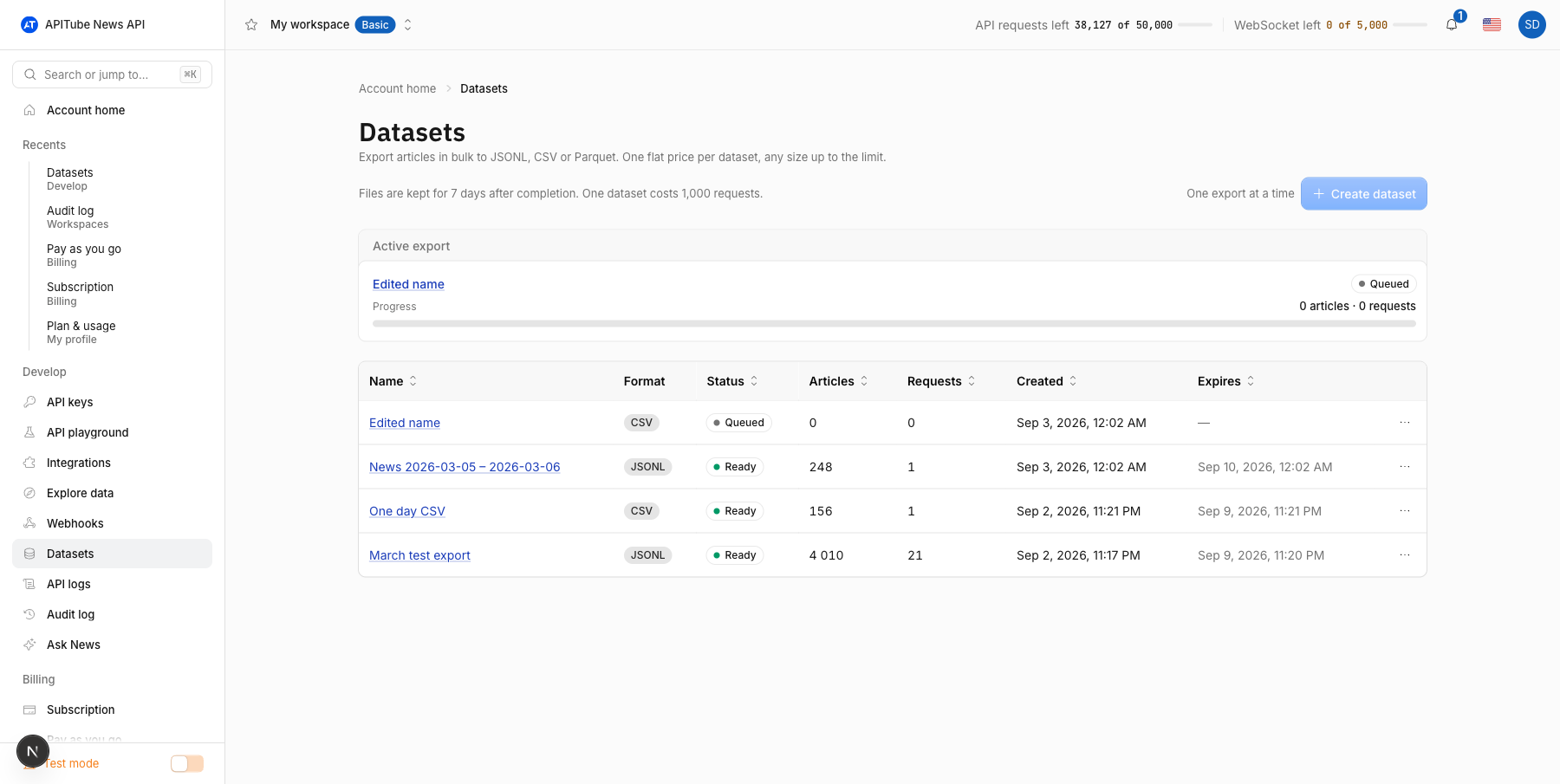
What is a dataset export?
A dataset export is the bulk version of the export parameter described in What export formats are available?. A single API request returns at most one page of results, so collecting a whole month of articles means paging through the archive yourself and stitching the files together. The Datasets page does that for you: it walks the archive in published_at order, writes every article once, and hands you one file. The rows are the same article objects the /v1/news/everything endpoint returns — every field, including entities, sentiment, categories and translations.
How do I create a dataset?
- Open Datasets in the Develop section of the sidebar and click Create dataset.
- Give the export a name (optional — the date range is used when you leave it empty) and choose a format: JSONL, CSV or Parquet.
- Pick the date range. It applies to the article’s published date in UTC and can span up to 366 days.
- Add filters if you need a subset — the builder offers the same filters as
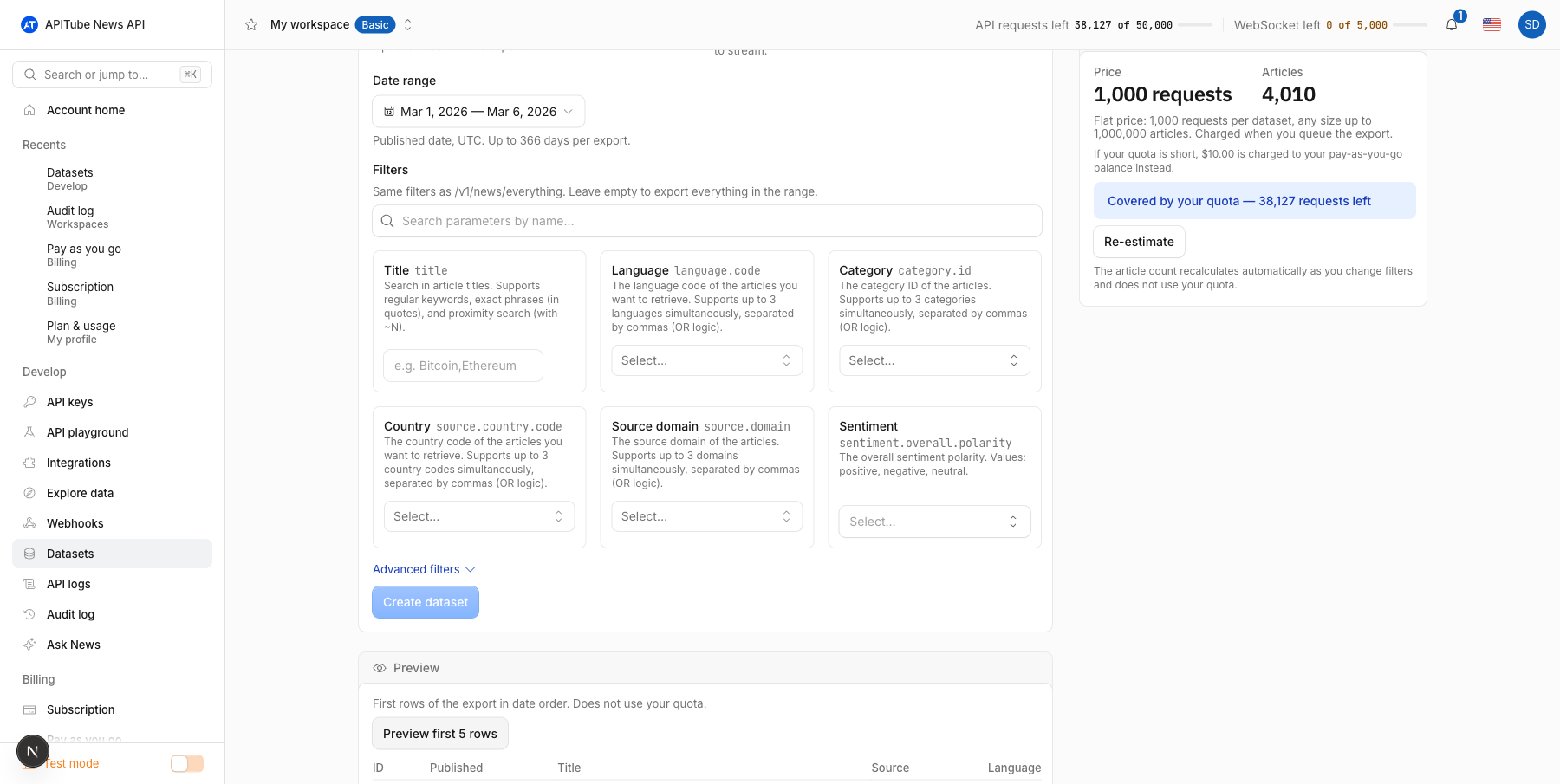
/v1/news/everything: title keywords, language, category, country, source domain, sentiment and the advanced ones. Leave everything empty to export the whole range. - Watch the Price & estimate card on the right. The article count recalculates on its own a moment after every change, and the card tells you how the flat price will be paid.
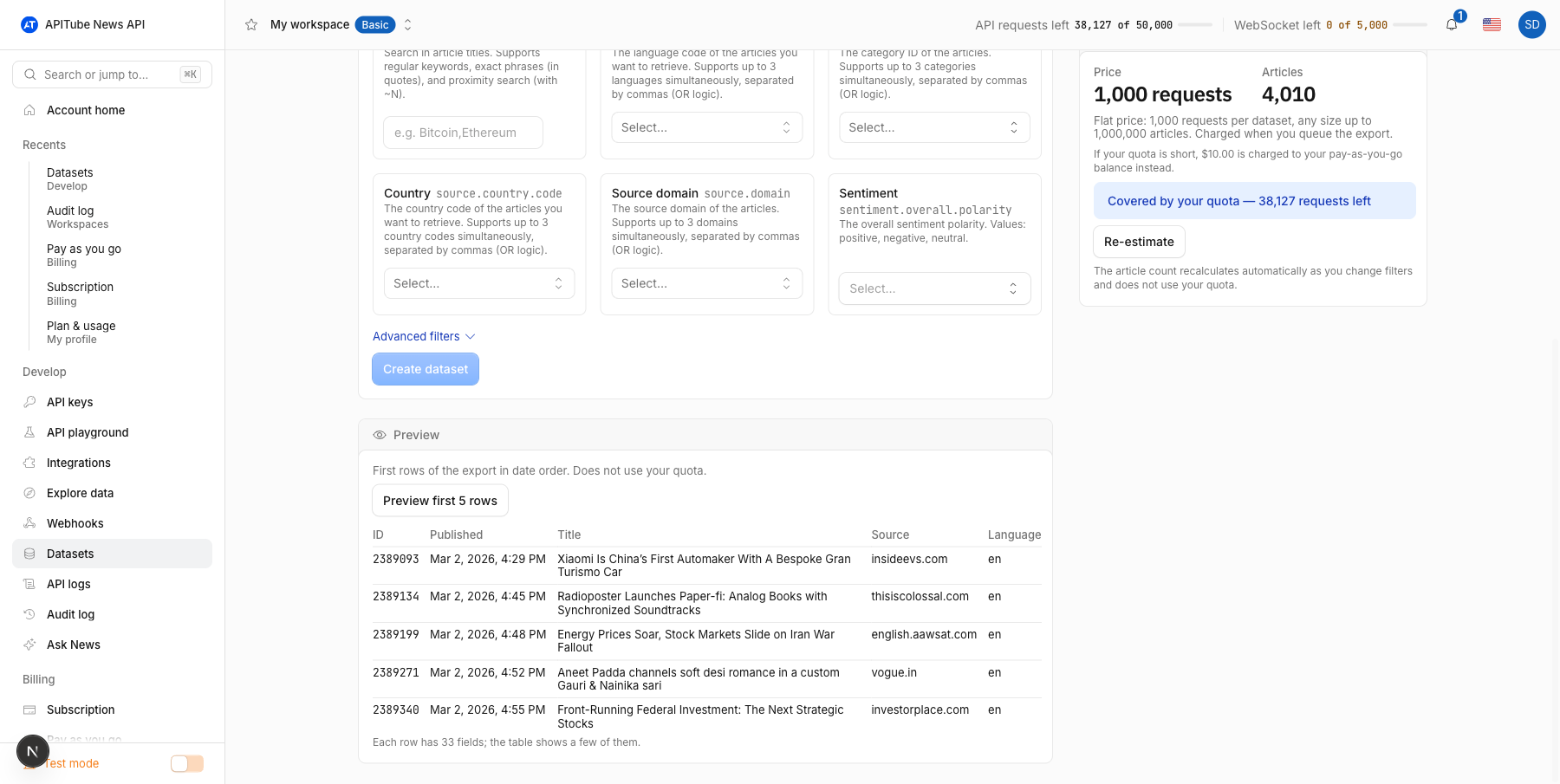
- Optionally click Preview first 5 rows to see the first articles of the future file.
- Click Create dataset. The export is queued, the page switches to its detail view, and the price is charged at that moment.
How much does a dataset cost?
Every dataset costs 1,000 requests, whether it holds 50 articles or 1,000,000. The charge is taken once, when you queue the export:
- From your plan quota when at least 1,000 requests are left — the estimate card says “Covered by your quota” and shows the remaining amount.
- From your pay-as-you-go balance ($10.00) when the quota is short, provided the balance switch on the Pay as you go page is on and the amount fits your monthly spending limit.
- If neither is possible the card says “Not enough credits” and the Create dataset button stays disabled until you top up or the quota resets.
The pages the worker fetches while building the file are not billed to your account, and neither the estimate nor the preview uses your quota. If an export fails for a technical reason — the News API stops responding, the file cannot be written — the 1,000 requests are refunded automatically and the detail page shows “refunded” next to the price. Cancelling an export yourself does not refund it.
What does the preview show?
Preview first 5 rows fetches the first five articles of the export in date order and shows their ID, published time, title, source domain and language. Under the table the page tells you how many fields a full row carries (33 at the time of writing), so you can check that the filters match what you expect before spending 1,000 requests. Change a filter and the button turns into Refresh preview.
How do I follow progress and download the file?
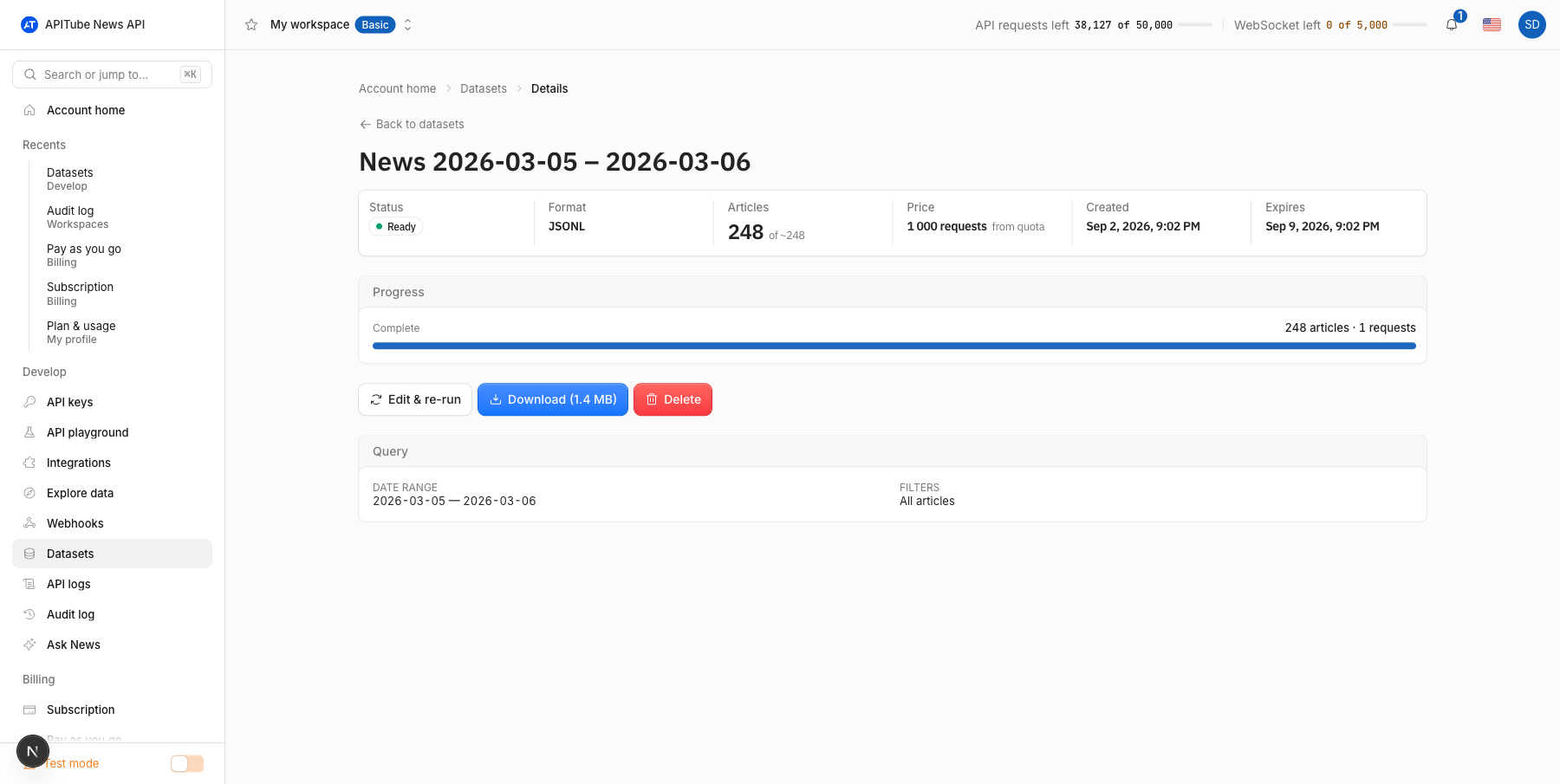
The detail page of a dataset shows its status (Queued, Running, Finalizing, Ready, Failed, Canceled or Expired), the articles collected so far against the estimate, the price paid, and a progress bar that updates while the worker runs. Exports of a few thousand articles finish within minutes; the largest ones take hours because the worker keeps a conservative request rate. When the status turns Ready, the Download button appears with the file size, a notification lands in the bell (and in your inbox), and the file stays available for 7 days — the exact expiry date is shown in the header strip.
Only one export runs at a time per account; while one is active the Create dataset button is disabled and the list page shows the active export with its progress. A running export can be cancelled from the detail page or from the actions menu of the list. A finished export can be deleted — that removes the file and the row.
Which file formats are available and how are they packed?
- JSONL — one JSON object per line, gzip-compressed (
.jsonl.gz). The full article object, easiest to stream into a pipeline. - CSV — a flat table, gzip-compressed (
.csv.gz), with the same columns as the API’s own CSV export: nested fields such assource,entitiesortranslationsare stored as JSON strings inside the cell. - Parquet — a columnar file (
.parquet, compressed internally) for pandas, DuckDB and Spark, with nested fields as JSON strings.
Rows are written in ascending published_at order, and every article appears exactly once.
Can I edit or re-run an export?
A finished, failed or cancelled export has an Edit & re-run button that opens the form pre-filled with the same name, format, date range and filters, so you can adjust one thing and queue a new export. Re-running is a new order and costs another 1,000 requests.
Common Questions
- Why is the Create dataset button disabled?
- Do title searches still have the 31-day limit?
- Who in my workspace can create and download datasets?
- Is the export written to the audit log?
Why is the Create dataset button disabled?
The button unlocks only when the estimate is fresh and the order can be paid. It stays disabled while the article count is recalculating after a change, when the count exceeds the 1,000,000-article limit (narrow the range or filters), when another export of your account is still running, when your plan is below Basic, or when neither the quota nor the pay-as-you-go balance can cover 1,000 requests.
Do title searches still have the 31-day limit?
The News API limits a title or query search to a 31-day published_at window per request. A dataset can still span up to 366 days with such filters: the export splits the range into 31-day chunks automatically, and the estimate does the same. Filters that do not search the title — language, category, source domain, entities — have no such window.
Who in my workspace can create and download datasets?
Owners, admins and members can create exports; viewers can open the Datasets page and download finished files but cannot queue new ones. A member can cancel or delete only the exports they created; admins and the owner manage every export. The 1,000 requests are always charged to the workspace owner’s quota or balance, exactly like regular API requests made with the workspace’s keys.
Is the export written to the audit log?
Yes. Creating, cancelling, downloading and deleting a dataset each produce an entry in the workspace Audit log with the actor, the dataset name and details such as the format and the estimated article count.